gear-codeAPI Connect Setup Guide

Microsoft 365 (Graph API) & Google Workspace (Gmail API) Setup Guide

The API Connect for enables email delivery, bounce processing, and email box monitoring through Microsoft 365 (Graph API) and Google Workspace (Gmail API) — without requiring SMTP or IMAP configuration.


1. Overview

The API Connect allows us to send emails and process bounces through:

Provider
Sending Method
Bounce Method
Auth Type

Microsoft 365

Microsoft Graph API

Graph API (Inbox/Junk)

Client Credentials (OAuth2)

Google Workspace

Gmail API

Gmail API (Inbox)

Service Account (JWT)

Key Benefits:

  • Pure API-based email sending (no SMTP needed)

  • API-based bounce processing (no IMAP/POP3 needed)

  • API Email Box Monitors for inbox automation with condition-based subscriber actions

  • Centralized API key management (system keys and per-customer keys)

  • Automatic token refresh and deduplication

  • Backend admin can manage everything; customers manage their own resources


2. Prerequisites

Requirement
Microsoft 365
Google Workspace

Admin Account

Azure AD (Entra ID) Global Admin

Google Workspace Super Admin

License

Microsoft 365 Business/Enterprise

Google Workspace (any tier)

Permissions

Mail.Send, Mail.Read, Mail.ReadWrite

gmail.send, gmail.readonly

PHP

curl extension, openssl extension

curl extension, openssl extension

Cron

Configured for bounce processing

Configured for bounce processing


3. Part A – Microsoft 365 Setup

1

Register an App in Azure Entra ID

  1. Go to https://portal.azure.comarrow-up-right and sign in with your admin account.

  2. Navigate to Microsoft Entra IDApp registrations.

  1. Fill in:

  • Name: Mail API (or any descriptive name)

  • Supported account types: "Accounts in this organizational directory only" (Single tenant)

  • Redirect URI: Leave blank

  1. Click Register.

  1. On the app overview page, note:

  • Application (client) ID

  • Directory (tenant) ID

2

Create a Client Secret

  1. In the app, go to Certificates & secretsClient secrets+ New client secret.

  2. Enter a description (e.g., Mail API Key) and expiry (recommended 24 months).

  3. Click Add.

  4. Immediately copy the secret Value (only shown once).

    Warning: If you navigate away without copying, create a new secret.

3

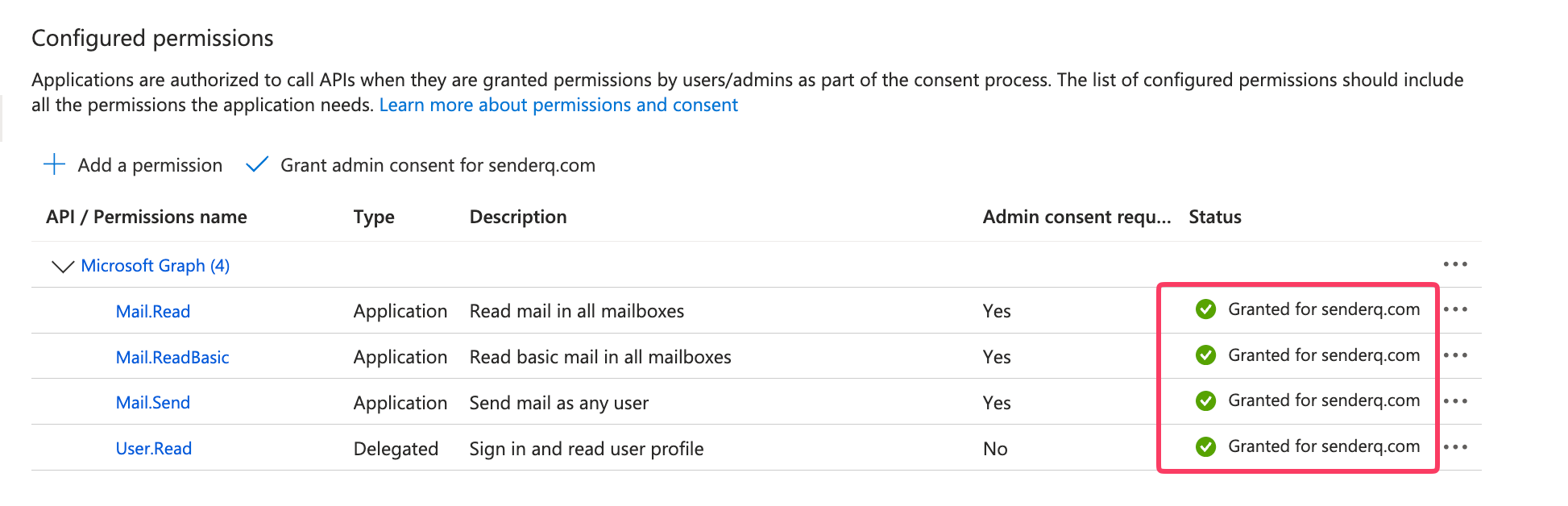
Configure API Permissions

  1. In your registered app, go to API permissions.

  2. Click + Add a permissionMicrosoft Graph.

  3. Choose Application permissions.

  4. Add:

    • Mail.Send — Send emails on behalf of any user

    • Mail.Read — Read emails for bounce processing

    • Mail.ReadWrite — Delete processed bounce emails

  5. Click Add permissions.

  6. Click Grant admin consent for [Your Organization] and confirm.

4

Enter Credentials

  1. Log in to Mailing Portal.

  2. Configure:

    • Enable Microsoft: Yes

    • Client ID: Application ID from registration

    • Client Secret: Value copied from Azure

    • Tenant ID: Directory ID from registration

  3. Click Save changes.

  4. (Optional) Set Enable Customer Keys to Yes if customers can provide their own Azure credentials.


4. Part B – Google Workspace Setup

1

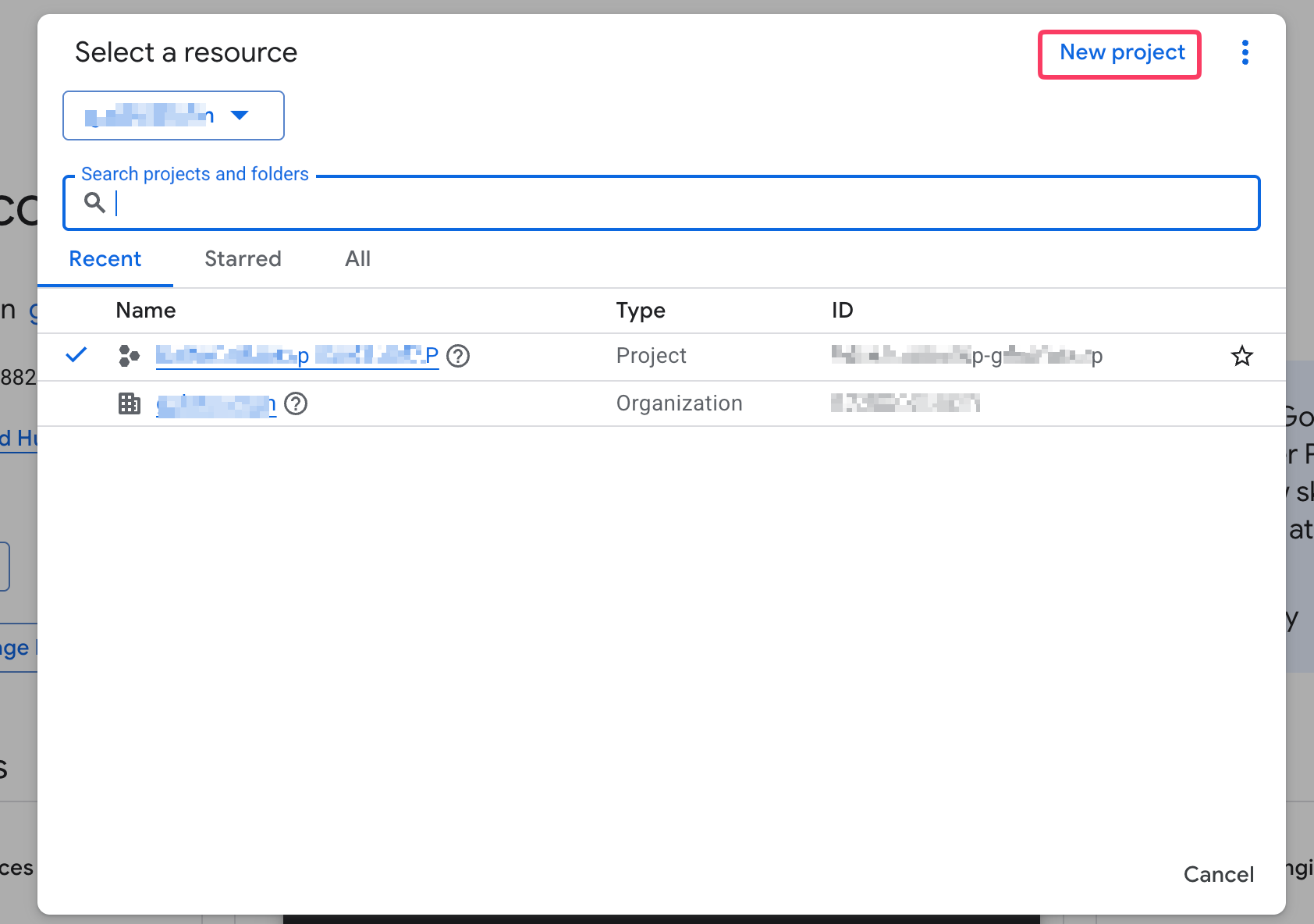
Create a Google Cloud Project

  1. Click the project dropdown → New Project.

  2. Enter a project name (e.g., Mail App) and click Create.

  3. Ensure the new project is selected.

2

Enable the Gmail API

  1. In Google Cloud Console, go to APIs & Services → Library.

  2. Search for "Gmail API".

  3. Click Gmail APIEnable.

3

Create a Service Account

  1. Go to APIs & Services → Credentials+ Create Credentials → Service Account.

  2. Fill:

    • Service account name: mail-app (or any)

    • Description: Service account for email sending

  3. Click Create and ContinueDone.

  4. Open the service account details and note the Service Account Email.

  5. Go to Keys → Add Key → Create new key → select JSONCreate.

    • A JSON file downloads automatically; keep it safe (contains client_email and private_key).

    • Security: Store this JSON securely. Anyone with it can impersonate users.

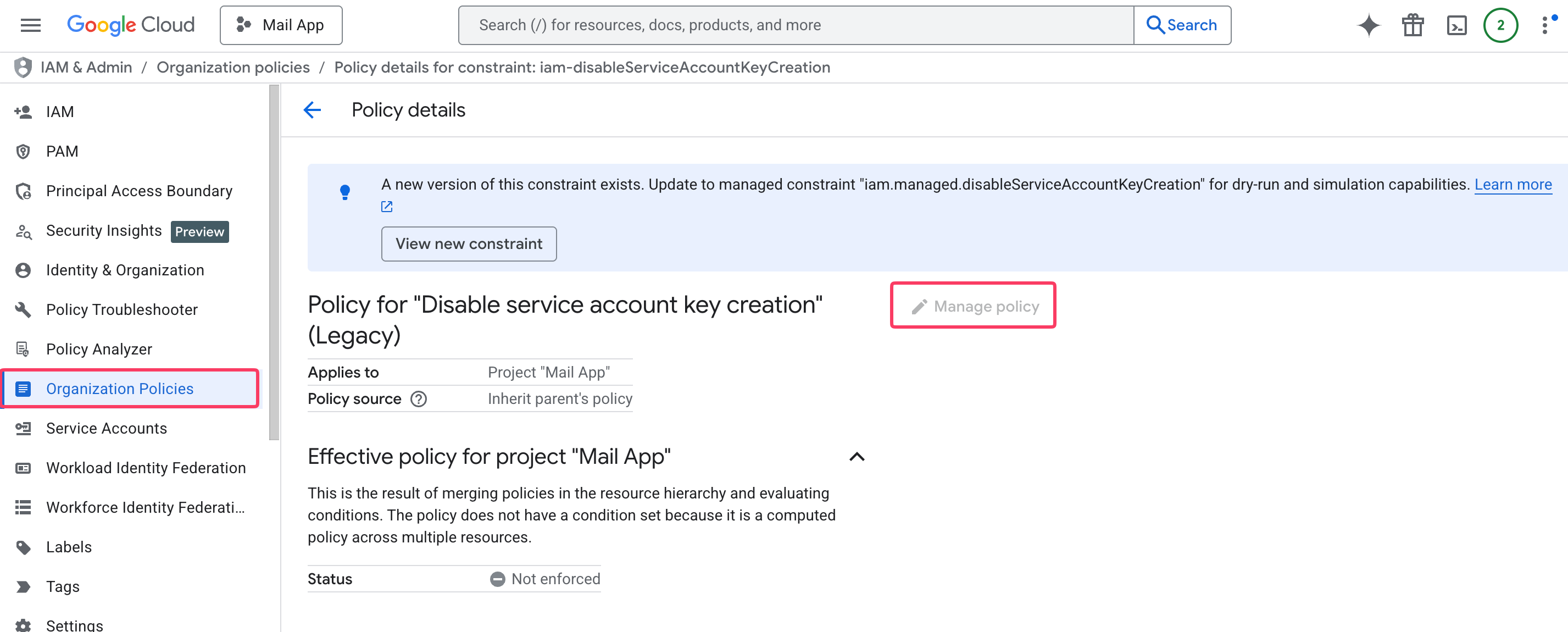
circle-exclamation
circle-exclamation

Once both policies (Disable service account key creation) are inactive, you can add the key for the service account you created earlier.

4

Enable Domain-Wide Delegation

  1. In the service account details, enable Domain-wide Delegation.

  2. If prompted, configure the OAuth consent screen (Application name: Email App, User type: Internal).

  3. Note the numerical Client ID shown — required for Admin authorization.

5

Authorize Scopes in Google Workspace Admin

  1. Go to https://admin.google.comarrow-up-rightSecurity → Access and data control → API controls.

  2. Click Manage Domain-wide DelegationAdd new.

  3. Enter:

    • Client ID: numerical Client ID from previous step

    • OAuth scopes:

  4. Leave Overwrite existing client ID unchecked (unless updating an existing entry).

  5. Click Authorize.

6

Enter Credentials

  1. Log in to Mailing Portal.

  2. Go to API Key [Manage keys] → New Google Key.

  3. Configure:

    • Enable Google: Yes

    • Key Name: My Google Key (or anything)

    • Service Account Email: from JSON key file (or from the Service Accounts page)

    • Private Key: paste the full -----BEGIN RSA PRIVATE KEY-----...-----END RSA PRIVATE KEY----- block (or paste entire JSON; Our application extracts the key)

  4. Click Save changes.


5. Backend Administration

Extension Settings

Located at Backend → Extensions → API Connect → Settings.

The settings page has two provider blocks:

Microsoft Block:

  • Enable/Disable dropdown (Yes/No)

  • "Manage API Keys" button → links to the API Keys management page

Google Block:

  • Enable/Disable dropdown (Yes/No)

  • "Manage API Keys" button → links to the API Keys management page

Behavior when toggling providers:

  • Enabling a provider registers its delivery server type (microsoft-graph-api or gmail-api) and automatically adds it to all customer groups' allowed server types

  • Disabling a provider removes the server type from all customer groups but retains stored keys and tokens

  • Both providers are auto-enabled on first install


API Key Management (Backend)

Located at Backend → Extensions → API Connect → Manage API Keys.

Backend admins manage all API keys from a centralized page. Keys can be either system-level (shared) or customer-specific.

Creating an API Key

  1. Click Create New

  2. Fill in the form:

    • Type: Google or Microsoft (controls which credential fields appear)

    • Customer: Select "System Key" for admin-level keys used across the platform, or assign to a specific customer

    • Key Name: A friendly label (e.g. "Production Microsoft Key")

    • Provider-specific fields:

      • Google: Service Account Email + Private Key (paste entire JSON or just the private_key value)

      • Microsoft: Client ID + Client Secret + Tenant ID

  3. Click Create

System Keys vs Customer Keys

Type
customer_uid
Who can use it
Created by

System Key

Empty

Backend admin when creating servers for any customer

Backend admin only

Customer Key

Set to customer's UID

The specific customer + backend admin

Backend admin or customer

Key point: Backend creates system keys; customers create their own keys from their dashboard. When backend creates a bounce server or monitor for a customer, it can choose between system keys and that customer's keys.


Customer Limits (Servers Tab)

API Connect injects additional limit fields into the existing settings:

Location 1: Backend → Settings → Customers → Servers tab

  • Max. API bounce servers — System-wide default for all customers

  • Max. API monitors — System-wide default for all customers

Location 2: Backend → Customer Groups → [Group] → Servers tab

  • Max. API bounce servers — Per-group override

  • Max. API monitors — Per-group override

Limit Values:

Value
Meaning

-1

Unlimited

0

Feature disabled (hidden from customer sidebar)

> 0

Maximum number allowed

Group-level settings override system defaults. If a group setting is not explicitly set, the system default is used.


6. Creating Delivery Servers

Microsoft Graph API Server

  1. Go to Servers → Delivery Servers → Create

  2. Select Microsoft Graph API from the server type dropdown

  3. Configure:

    • Name: Server display name

    • Microsoft Email: The email address to send from (must have an active Microsoft 365 mailbox)

    • API Key: Select from available Microsoft keys (system or customer keys depending on context)

    • From Name: Display name for sent emails. This optional field is used for dynamic personalization. By default, the Microsoft 365 mailbox display name is used. You can reference this value in the email body or signature using the [DS_FROM_NAME] tag to apply different signatures or sender identities.

    • Hourly/Daily Quota: Rate limit (optional)

    • All other settings work the same way as in other delivery servers and follow the standard delivery and throttling rules.

  4. System validates mailbox access on save — green checkmark confirms connection

  5. Set status to Active

Gmail API Server

  1. Go to Servers → Delivery Servers → Create

  2. Select Gmail API from the server type dropdown

  3. Configure: Same fields as Microsoft (Name, Google Email, API Key, From Name, etc.)

  4. System validates Gmail API access on save

  5. Set status to Active

Notes:

  • SMTP fields are hidden; only API-related fields are displayed

  • The API key dropdown filters dynamically based on provider type

  • Delivery servers auto-refresh tokens if they expire within 10 minutes

  • Microsoft Graph API supports up to 5 custom internet message headers per email

Backend vs Customer — Delivery Servers

Capability
Backend
Customer

Create servers

Yes (for any customer)

Yes (own servers only)

Select customer

Yes (customer autocomplete)

No (auto-assigned)

Key selection

System keys + selected customer's keys

Own keys only

Lock servers

Yes

No


7. API Bounce Servers

API bounce servers process bounces by reading emails via API (Microsoft Graph or Gmail) instead of IMAP/POP3. Customers can create standalone bounce servers independently — they don't need to be tied to a delivery server.

Creating a Bounce Server (Backend)

  1. Go to Servers → API Bounce Servers → Create

  2. Fill in the form:

    • Name: Server display name

    • Provider: Microsoft or Google

    • Email: The mailbox to process bounces from

    • API Key: Dropdown filtered by selected provider and customer (system keys shown when no customer selected, customer's keys shown when a customer is selected)

    • Customer: Autocomplete field to assign to a customer (optional)

    • Locked: Toggle to prevent customer from modifying this server

  3. System tests the connection on save — green checkmark confirms API access

  4. Server begins processing on the next cron run

Creating a Bounce Server (Customer)

  1. Go to API Bounce Servers → Create in the customer area

  2. Fill in:

    • Name: Server display name

    • Provider: Microsoft or Google

    • Email: The mailbox to process bounces from

    • API Key: Dropdown shows only the customer's own keys for the selected provider

  3. Save — connection is tested automatically

Note: Customers can only see and manage their own bounce servers. The maximum number of bounce servers is controlled by the backend admin via customer group settings.

Bounce Processing Flow

  1. Message-ID is recorded during email sending via Graph API or Gmail API

  2. Cron job runs every 10 minutes

  3. Tokens are refreshed if expiring within 10 minutes

  4. Unread emails are fetched from the mailbox (Inbox and Junk folders)

  5. Raw MIME content is parsed for DSN (Delivery Status Notification) and FBL (Feedback Loop) messages

  6. Bounces are classified using a 3-tier matching system:

    • Tier 1: Feedback Loop (FBL/ARF) detection

    • Tier 2: DSN path — diagnostic code → DSN message patterns

    • Tier 3: Body-based bounce rules (fallback)

  7. Bounce log entries are created and matched to campaigns

  8. Hard bounces trigger subscriber blacklisting

  9. Processed bounce emails are deleted from the mailbox

Bounce Classifications

Type
Description
Action

Hard Bounce

Permanent failure (mailbox doesn't exist, domain not found)

Subscriber blacklisted

Soft Bounce

Temporary failure (full inbox, server busy)

Logged for review

Feedback Loop

Abuse report / spam complaint

Subscriber unsubscribed

Internal Bounce

Other delivery issues

Logged for review

Token Deduplication

Tokens are shared across servers: if the same email+provider combination is used for a delivery server and a bounce server, they share the same token record. This prevents duplicate API calls and ensures consistent token refresh. The UNIQUE constraint on (customer_id, email, provider) enforces this at the database level.


8. API Email Box Monitors

API Email Box Monitors automate subscriber actions based on incoming email content, using API to read emails instead of IMAP. Like bounce servers, customers can create monitors independently.

Creating a Monitor (Backend)

  1. Go to Servers → API Monitors → Create

  2. Fill in:

    • Name: Monitor display name

    • Provider: Microsoft or Google

    • Email: The mailbox to monitor

    • API Key: Dropdown filtered by provider and customer

    • Identify Subscribers By: How to match incoming emails to subscribers

      • By email address — Match sender email against subscriber lists

      • By subscriber UID — Match via tracking links or Message-Id header

      • By subscriber UID or email address — Try UID first, fallback to email

  3. Add Conditions: Define matching rules

    • Each condition has: Condition (e.g. "contains"), Value (text to match), Action (what to do)

    • Wildcard * is supported in condition values

    • Multiple conditions can be added — the first match wins per email

  4. Assign to a Customer (optional) with Lock toggle

  5. Save — connection is tested automatically

Creating a Monitor (Customer)

  1. Go to API Monitors → Create in the customer area

  2. Same fields as backend except:

    • No customer selection (auto-assigned)

    • Additional actions available: Move to list, Copy to list, Stop campaign group (these require selecting a target list/group from the customer's own data)

  3. Save

Available Monitor Actions

Action
Description
Available in

Unsubscribe

Mark subscriber as unsubscribed

Backend + Customer

Blacklist

Add subscriber to global blacklist

Backend + Customer

Unconfirm

Mark subscriber as unconfirmed

Backend + Customer

Delete

Remove subscriber entirely

Backend + Customer

Move to list

Move subscriber to a different list

Customer only

Copy to list

Duplicate subscriber to another list

Customer only

Stop campaign group

Block subscriber from a campaign group

Customer only

Monitor Processing Flow

  1. Emails are fetched from the monitored mailbox via API

  2. MIME content is parsed (plain text extracted, HTML stripped, quoted replies removed)

  3. Each email is matched against all conditions in order

  4. First matching condition triggers its action

  5. Subscriber is identified based on the "Identify Subscribers By" setting

  6. Action is executed (unsubscribe, blacklist, etc.)

  7. Processed emails can be optionally deleted


9. Backend vs Customer — Complete Comparison

Feature
Backend Admin
Customer

API Keys

Create system keys + customer keys; manage all

Create own keys only

Delivery Servers

Create for any customer; choose system or customer keys

Create own; use own keys only

Bounce Servers

Create for any customer; choose system or customer keys; lock

Create own; use own keys only; limited by group quota

Email Box Monitors

Create for any customer; choose system or customer keys; lock

Create own; use own keys only; limited by group quota; extra actions (move/copy list, stop group)

Key Dropdown

Shows system keys + selected customer's keys (filtered by provider)

Shows only own keys (filtered by provider)

Customer Selection

Autocomplete to assign any customer

Auto-assigned to logged-in customer

Lock Toggle

Available — prevents customer from modifying

Not available

Import/Export

CSV import and export for bounce servers and monitors

CSV import and export for own bounce servers and monitors

Bulk Actions

Enable, disable, delete in bulk

Enable, disable, delete in bulk (own only)


10. Cron Job Configuration

A single cron job handles token refresh, bounce processing, and monitor processing for all providers.

Cron Job Phases (Sequential)

Phase 1: Token Refresh

  • Scans all tokens across the system

  • Deduplicates by email+provider to avoid redundant refreshes

  • Only refreshes tokens expiring within 10 minutes

  • Syncs refreshed token to all duplicate entries

Phase 2: Bounce Server Processing

  • Deduplicates by email+provider

  • Processes each unique email+provider combination

  • Fetches emails, parses MIME, classifies bounces, creates log entries

  • Supports PCNTL forking for parallel processing if enabled

Phase 3: Email Box Monitor Processing

  • Deduplicates by email+provider

  • Processes each unique email+provider combination

  • Fetches emails, matches conditions, executes subscriber actions

  • Supports PCNTL forking for parallel processing if enabled

Option
Description

--verbose=1

Show detailed output (recommended for debugging)

--fast=1

Allow concurrent processing (default behavior)

Cron Auto-Recovery

  • At the start of each run, the cron resets any "stuck" statuses (cron-running) for tokens, bounce servers, and monitors

  • This prevents permanent lockouts from crashed processes


11. Sidebar Navigation

Backend Sidebar

Under the Servers menu:

  • API bounce servers — appears after "Bounce servers"

  • API monitors — appears after "Email box monitors"

Customer Sidebar

After the Servers menu (only visible if allowed by group limits):

  • API monitors — shown if Max. API monitors ≠ 0

  • API bounce servers — shown if Max. API bounce servers ≠ 0


12. Troubleshooting

Below are common issues grouped by provider and general problems. Expand each item for details.

Microsoft Issues

chevron-right"AADSTS700016: Application not found in the directory"hashtag

Cause: The Client ID or Tenant ID is incorrect.

Fix: Double-check the Application (client) ID and Directory (tenant) ID from the Azure App registration overview page.

chevron-right"AADSTS7000215: Invalid client secret"hashtag

Cause: The client secret has expired or was copied incorrectly.

Fix:

  • Go to Azure Portal → App registrations → Your app → Certificates & secrets.

  • Check if the secret expired.

  • Create a new secret and update it in Backend settings.

chevron-right"AADSTS700027: Client assertion is not within its valid time range"hashtag

Cause: Server clock is significantly out of sync.

Fix: Ensure your server's system clock is accurate (use NTP sync).

chevron-right"MailboxNotEnabledForRESTAPI" or "MailboxNotFound"hashtag

Cause: The email doesn't have a valid Microsoft 365 mailbox or is not licensed.

Fix:

  1. Verify the email has an active Microsoft 365 license with Exchange Online.

  2. Check Microsoft 365 Admin Center → Users → Active users → select the user → Licenses.

chevron-right"Authorization_RequestDenied" or "Insufficient privileges"hashtag

Cause: API permissions not granted or admin consent not provided.

Fix:

  1. Azure Portal → App registrations → Your app → API permissions.

  2. Ensure Mail.Send, Mail.Read, and Mail.ReadWrite are listed under Application permissions.

  3. Click Grant admin consent and confirm green checkmarks appear.

chevron-rightEmails sent but bounces not processedhashtag

Cause: Cron job not running, or Mail.Read/Mail.ReadWrite permission missing.

Fix:

  1. Verify cron job is configured and running (crontab -l).

  2. Run manually to check errors:

  3. Ensure Mail.Read and Mail.ReadWrite have admin consent.

chevron-rightToken stuck in "cron-running" statushashtag

Cause: A previous cron run crashed.

Fix: The cron command auto-resets stuck statuses on the next run. If persistent, manually update the token status in the DB:

Google Issues

chevron-right"Invalid JWT Signature" or "JWT assertion failed"hashtag

Cause: The private key is malformed or doesn't match the service account.

Fix:

  1. Re-download the JSON key from Google Cloud Console → Service Account → Keys.

  2. Paste the entire private_key value including -----BEGIN RSA PRIVATE KEY----- and -----END RSA PRIVATE KEY-----.

  3. Ensure no extra spaces or line breaks around the key.

chevron-right"Delegation denied" or "Client is unauthorized to retrieve access tokens"hashtag

Cause: Domain-wide delegation not properly configured.

Fix:

  1. Ensure Enable Domain-wide Delegation is checked in Google Cloud Console → Service Account.

  2. In Google Workspace Admin → Security → API controls → Domain-wide Delegation:

    • Verify the numerical Client ID matches the service account.

    • Verify the scopes include:

  3. Wait up to 24 hours for propagation (usually faster).

chevron-right"User not found" or "Precondition check failed"hashtag

Cause: Email is not a valid Google Workspace user or service account can't impersonate the user.

Fix:

  1. Verify the email belongs to your Google Workspace domain.

  2. Check the user is active (not suspended) in Google Workspace Admin → Users.

  3. Ensure Domain-wide delegation scopes are authorized for the correct Client ID.

chevron-right"Gmail API has not been enabled"hashtag

Cause: Gmail API is not enabled in the Google Cloud project.

Fix: Google Cloud Console → APIs & Services → Library → search "Gmail API" → click Enable.

chevron-right"Insufficient Permission" when sendinghashtag

Cause: The gmail.send scope is not authorized.

Fix: In Google Workspace Admin → Domain-wide Delegation, ensure https://www.googleapis.com/auth/gmail.send is included.

chevron-rightService account key file issueshashtag

Cause: JSON key file is corrupted or wrong file was uploaded.

Fix:

  1. Open the JSON file and verify it contains client_email and private_key.

  2. You can paste either:

    • Just the private key block, or

    • The entire JSON file (App will extracts the key automatically).

General Issues

chevron-rightDelivery server shows "Not connected" after savinghashtag

Cause: Token acquisition failed during validation.

Fix:

  1. Check credentials in Backend → Extensions → API Connect → Settings.

  2. Try connecting the email again from the customer area.

  3. Check application logs for detailed error messages.

chevron-rightBounce processing not finding campaign matcheshashtag

Cause: Bounced Message-ID doesn't match any delivery log entry.

Fix: This can be normal for bounces from emails sent before the extension was installed, or for non-campaign emails. Only campaign emails are matched.

chevron-rightAPI Email Box Monitor conditions not matchinghashtag

Cause: Condition patterns are case-sensitive or email content differs.

Fix:

  1. Test with a broader condition first (e.g., match any content).

  2. Check the monitor's subscriber identification method.

  3. Verify monitor is Active and not Locked.

chevron-right"Extension not enabled" errorhashtag

Cause: The API Connect extension is not activated.

Fix: Backend → Extensions → API Connect → click Enable.

chevron-rightServer type not showing in delivery server dropdownhashtag

Cause: Provider disabled or customer's group not allowed.

Fix:

  1. Ensure provider (Microsoft/Google) is enabled in Backend → Extensions → API Connect → Settings.

  2. Check customer's group settings → Servers → Allowed server types → ensure "Microsoft Graph API" or "Gmail API" is checked.

chevron-rightCron job runs but no outputhashtag

Cause: No active tokens or monitors to process.

Fix:

  1. Verify tokens exist and have active status in the database.

  2. Run with --verbose=1 to see output.

  3. Check at least one email has been connected and a token exists.


Quick Reference

API Endpoints Used

Provider
Action
Endpoint

Microsoft

Get Token

POST https://login.microsoftonline.com/{tenant}/oauth2/v2.0/token

Microsoft

Send Email

POST https://graph.microsoft.com/v1.0/users/{email}/sendMail

Microsoft

List Messages

GET https://graph.microsoft.com/v1.0/users/{email}/mailFolders/{folder}/messages

Microsoft

Get Raw Email

GET https://graph.microsoft.com/v1.0/users/{email}/messages/{id}/$value

Microsoft

Delete Email

DELETE https://graph.microsoft.com/v1.0/users/{email}/messages/{id}

Google

Get Token

POST https://oauth2.googleapis.com/token

Google

Send Email

POST https://gmail.googleapis.com/gmail/v1/users/{email}/messages/send

Google

List Messages

GET https://gmail.googleapis.com/gmail/v1/users/{email}/messages?q=is:unread

Google

Get Raw Email

GET https://gmail.googleapis.com/gmail/v1/users/{email}/messages/{id}?format=raw

Google

Delete Email

DELETE https://gmail.googleapis.com/gmail/v1/users/{email}/messages/{id}


Last updated